Monthly employee overview
Written By CAL
Last updated 4 months ago
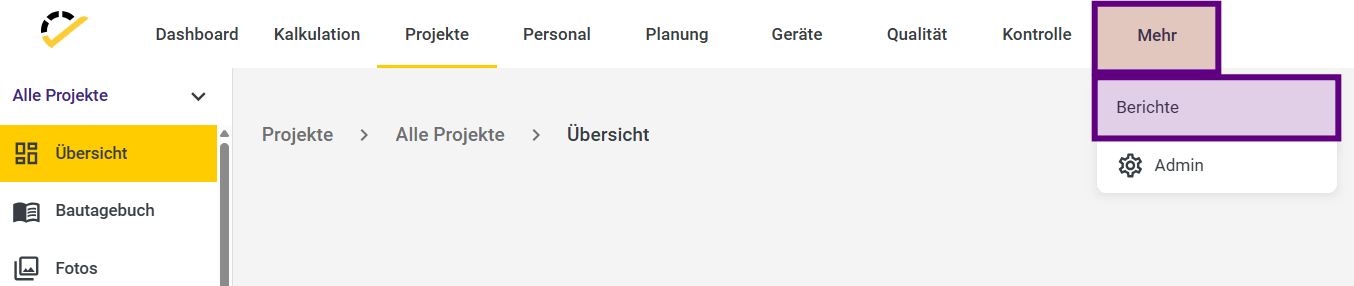
To view the recorded times and absences for each employee in a given month, go to More -> Reports in the 123erfasst Office.
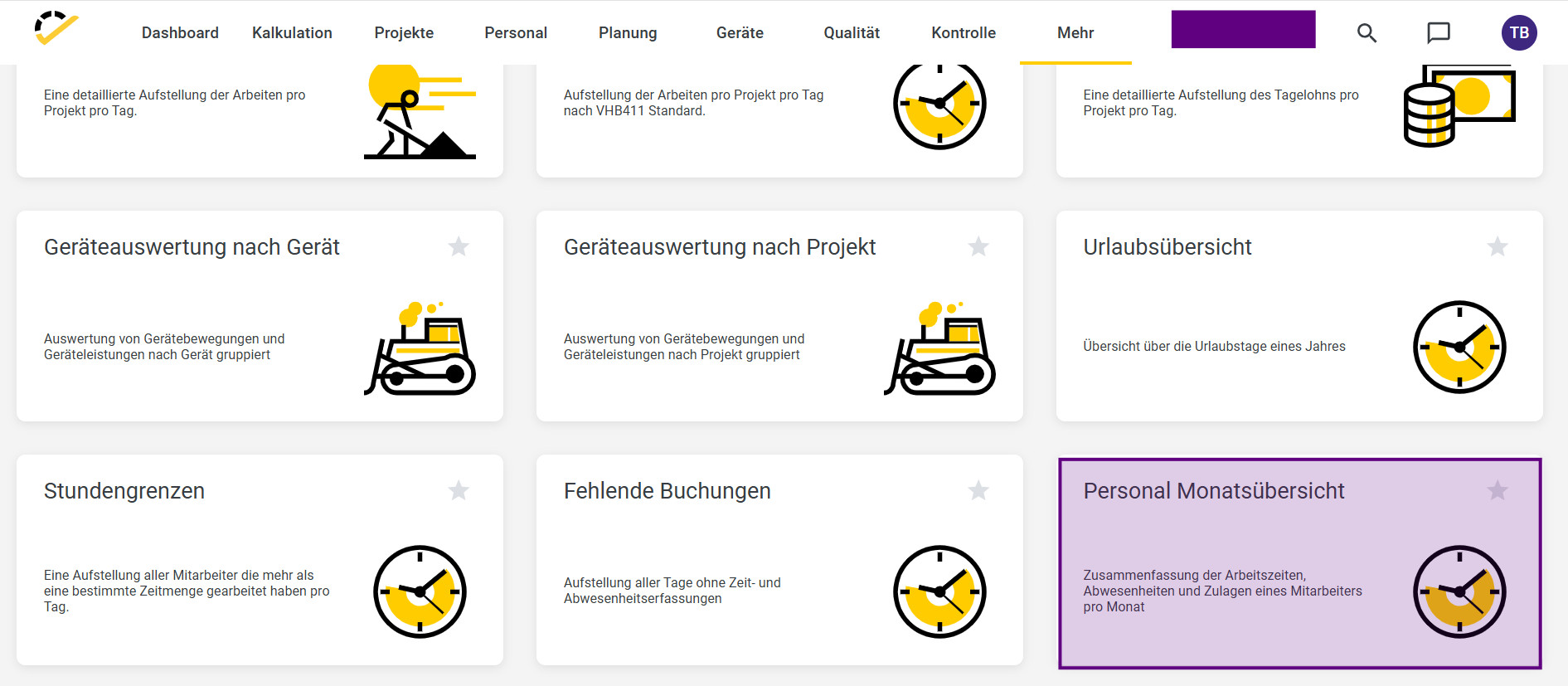
In the report overview that opens, select the "Monthly Personnel Overview" report.
In the report, you can make selections and set filters on the right-hand side that affect the data displayed in the report.
For example, select the relevant month and one or more employees in the Personnel dropdown menu for whom you want to generate the report.
You also have the option to choose whether you want the data in your report displayed in standard hours (time minutes) or industrial hours (decimal time).
You can also use the "Show Projects" dropdown to specify whether individual projects for which time was tracked should be listed separately in the report. The total hours per day for each employee will then be displayed there.
Finally, in the "Hide Activities" field, you can select whether certain activities should not be displayed if, for example, they are not relevant to your report.
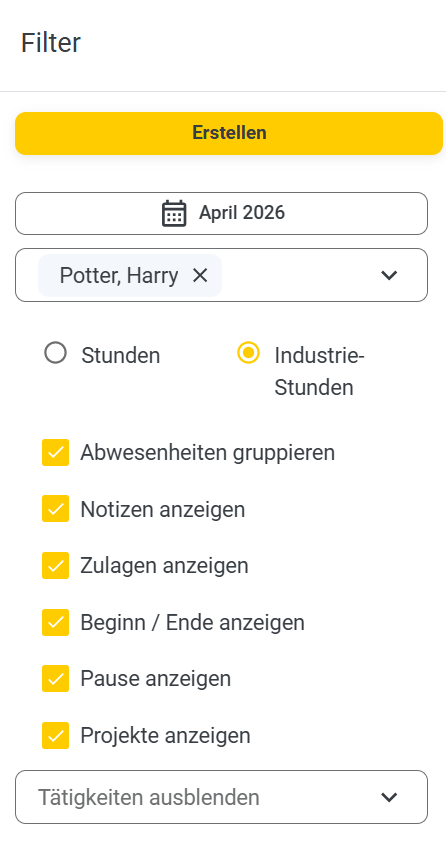
Once you’ve made your selections and set all necessary filters, click Create at the top.
A preview of the report will now be generated for you:
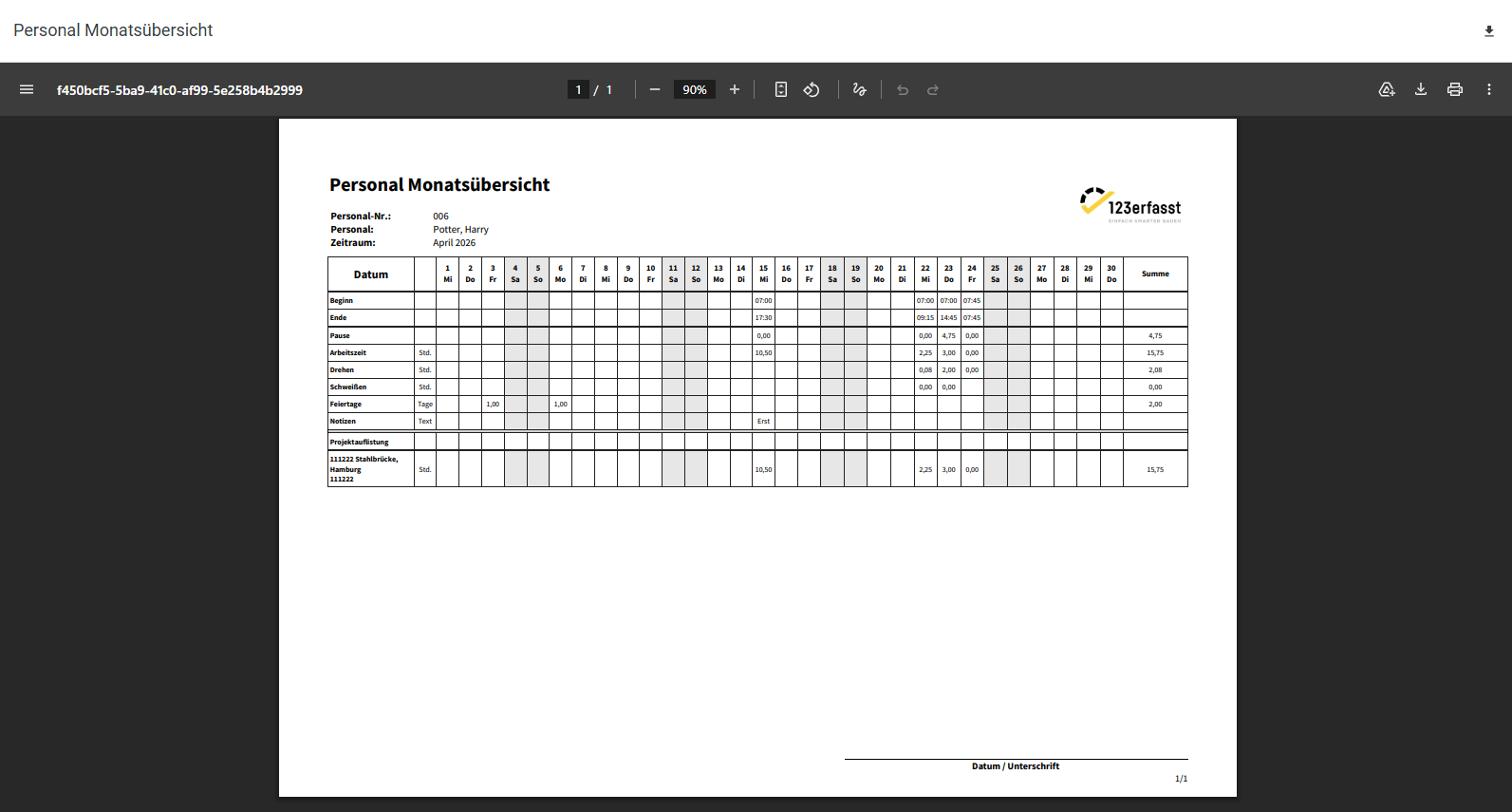
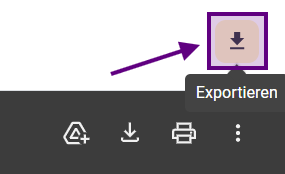
Then click the Export icon in the top right corner.
The report export window opens, where you can specify a file name for your report and choose whether you want to export the report in PDF, Word, or Excel format.
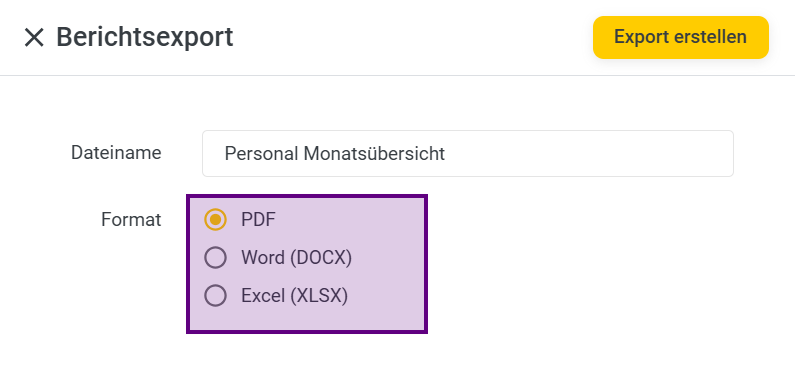
Clicking on "Create Export" will convert the report to the selected format and download it. You will receive a corresponding notification via the "Download Complete" message in the bottom right corner of the page.
